
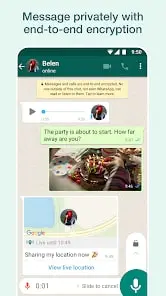
How to Use Message Reactions in GB WhatsApp
Message reactions let you respond to a message with an emoji instead of a full reply. They keep conversations fast and tidy, and they work in both individual and group chats on versions that support them.
What Message Reactions Are For
A reaction places a small emoji on a specific message so the sender knows how you feel without you typing anything. Reactions are tied to the message itself, so they stay meaningful even as the conversation moves on.
Support and available emojis vary between GB WhatsApp versions, so the steps below describe the general flow rather than a fixed menu path.
How to Add an Emoji Reaction
- Open the chat and find the message you want to react to.
- Long-press the message, or look for a react option in its menu.
- Pick an emoji from the reaction set that appears.
- Confirm the emoji shows on the message, then check that the other person can see it.
If long-press shows nothing, your version may place reactions behind a tap on the message or a dedicated icon.
Changing or Removing a Reaction
Made the wrong choice? Reactions are easy to fix:
- Tap your own reaction on the message, or long-press the message and choose the react option again.
- Select a different emoji to replace the current one.
- To remove it entirely, tap your existing reaction so it deselects, if your version works that way.
Only the person who added a reaction can change or remove it, though admins cannot modify reactions on behalf of others.
Viewing Reactions on a Message
When several people react to the same message, the emojis usually appear in a small row beneath it. Tapping the reaction row often shows who reacted with each emoji, though the detail level depends on the version.
Reactions in Group Chats
- Group reactions help avoid flooding the chat with short replies like “ok”.
- Everyone in the group can see reactions, so use them the way you would use a public reply.
- If a group is very large, reaction rows can get crowded; some versions collapse them after a certain count.
When Reactions Are Not Working
Option does not appear
Your version may not support reactions, or they may be placed under a different interaction. Try long-press and the message menu before assuming the feature is absent.
Reaction does not send
Check your connection. Reactions are tiny messages, so a failed reaction is almost always a network issue rather than a settings problem.
Others cannot see my reaction
They may be on an older version that does not display reactions, or the reaction failed to sync. Ask them to update or resend your reaction.
Feature availability changes between builds; the site’s article on what GB WhatsApp supports explains why some options appear on one version but not another.
Summary
Long-press a message, pick an emoji, and confirm it appears. Change or remove your reaction the same way, and keep in mind that reactions are visible to everyone in a group.
For an overview of the app, see the GB WhatsApp homepage on this site.
Frequently Asked Questions
Usually you choose from a set offered by your version. Custom emoji reactions are not available on every build.
No. Each person manages their own reactions; admins cannot delete them on behalf of others.
They may be using a different version or a version that does not support reactions, so the feature is not visible to everyone equally.
On versions that support them, yes. Reactions are visible to the whole group, so treat them as public.