
GB WhatsApp Login Problem Fix (2026) – Unable to Login?
If your GB WhatsApp is not logging in, you’re not alone. This is one of the most common issues users face, especially after updates or security changes.
Whether you’re stuck on verification, not receiving OTP, or seeing connection errors — this guide covers real fixes that actually work right now.
Why Is GB WhatsApp Not Logging In?
Login issues usually happen for a few specific reasons:
- You’re using an outdated version
- WhatsApp has flagged your account temporarily
- Verification (OTP) is blocked or delayed
- Conflict with official WhatsApp
- Network or device-related issues
The good news: most of these can be fixed in a few minutes.
Common GB WhatsApp Login Errors
Before jumping into solutions, identify your problem:
1. Verification Code Not Received
You enter your number, but the OTP never arrives.
2. Stuck on “Connecting”
The app keeps loading but never logs in.
3. “Unable to Login” Error
Generic login failure message.
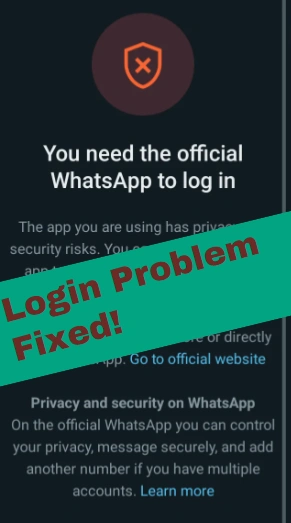
4. Temporarily Blocked Message
You see a countdown timer (e.g., 24 hours).
5. App Crashing During Login
The app closes when trying to verify.
Working Fixes for GB WhatsApp Login Problem
Follow these fixes in order. Most users solve the issue within the first 2–3 steps.
Fix 1: Update to the Latest Version (Most Important)
Using an old version is the #1 reason login fails.
- New updates often include anti-ban protection
- Old versions get blocked by WhatsApp servers
👉 Install the latest version from your download page before trying again.
Fix 2: Clear App Data and Reinstall
Sometimes cached data causes login conflicts.
Steps:
- Go to Settings → Apps → GB WhatsApp
- Tap Storage → Clear Data & Cache
- Uninstall the app
- Reinstall the latest version
Then try logging in again.
Fix 3: Use Official WhatsApp First (Workaround)
This is a surprisingly effective trick.
Steps:
- Install official WhatsApp
- Verify your number there
- Log out or uninstall
- Reinstall GB WhatsApp
- Try logging in again
This helps “reset” your number status.
Fix 4: Change Network (WiFi / Mobile Data / VPN)
Sometimes login requests are blocked by your network.
Try:
- Switching between WiFi and mobile data
- Turning airplane mode ON/OFF
- Using a VPN temporarily
Fix 5: Wait 24 Hours (If Temporarily Blocked)
If you see a timer, don’t keep retrying.
- Multiple attempts can extend the block
- Wait until the timer ends
- Then try again with the latest version
Fix 6: Check SIM & Number Format
Make sure:
- Your SIM is active
- You entered the correct country code
- No extra digits or spaces
If your issue is related to account restriction, check our full guide on fixing banned accounts.
Download Working GB WhatsApp Version (Stable Login)
If you’re still facing issues, your version is likely outdated or flagged.
👉 Use a latest GB WhatsApp anti-ban version that supports stable login and verification.
What to look for:
- Recently updated (2026)
- Anti-ban protection
- Verified login support
- No crash issues
Can You Fix GB WhatsApp Login Without Losing Chats?
Yes — in most cases.
As long as you:
- Don’t uninstall without backup
- Use restore option during login
Your chats should remain safe.
Frequently Asked Questions
Why is GB WhatsApp not logging in even after update?
It could be a temporary server block, network issue, or number flag. Try switching network or waiting 24 hours.
Does VPN help fix login problems?
Sometimes, yes. It can bypass network restrictions or regional blocks.
Is GB WhatsApp login issue permanent?
No. Most login issues are temporary and can be fixed with the steps above.
Can I use the same number again?
Yes, unless it’s permanently banned. In most cases, you can log in again after fixing the issue.
Final Thoughts
Login problems in GB WhatsApp are frustrating, but usually not permanent.
In most cases, the solution is simple:
- Update the app
- Clear old data
- Avoid repeated login attempts
If one method doesn’t work, move to the next — and you should be able to log in successfully.